How to factory reset your PC for better performance


If your Windows PC is running unusually slow or experiencing frequent crashes, a factory reset may help resolve software-related issues. Resetting your system removes installed programs and reinstalls Windows, giving the operating system a fresh starting point.
This guide covers how to perform a factory reset on your Windows PC and includes important pre- and post-reset tips to optimize performance and enhance security.
What a factory reset does and how it improves performance
A factory reset reinstalls Windows, removes installed apps, and may delete personal files depending on the reset option you choose. This gives your system a fresh starting point and may improve performance by:
- Removing unused apps and bloat that consume storage and resources.
- Clearing temporary files that have accumulated over time to reduce system load.
- Deleting corrupt files or failed updates.
- Removing many malicious files that exist within the operating system.
Note that software-related slowdowns are usually fixed with a reset; it won’t help with hardware problems, such as a failing hard drive or faulty RAM.
Quick fixes to try before a factory reset
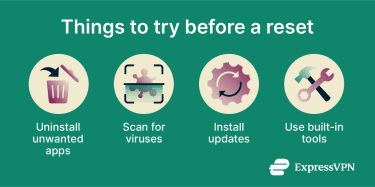 Factory resets take time, and reinstalling everything can be inconvenient. As such, it’s best to try simpler fixes before resorting to a reset:
- Remove clutter: Uninstall apps you don’t use and delete large files you don’t need. Also, check which apps start when you power up your device, and disable any that aren’t necessary.
- Scan for malware and unwanted programs: Run a full system scan with your anti-malware software, and quarantine or delete any suspicious files or apps.
- Update Windows and drivers: Check for system updates in Settings, and use Device Manager to install the latest drivers for components such as your graphics card.
- Use built-in tools: Windows offers Storage Sense (which automatically removes unnecessary files) and Disk Cleanup (which frees storage space on your drives). You can also run a System File Checker scan to repair or replace corrupt system files.
Learn more: How to know if your computer has a virus
Factory reset options
 A factory reset reinstalls a clean version of the operating system. Unlike a complete PC wipe (which deletes everything from all storage drives), a factory reset is more flexible.
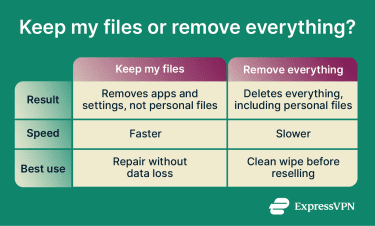
Before the factory reset begins, you’ll choose one of these options:
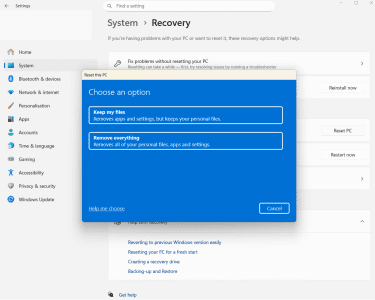
- Keep my files reset (a refresh): Resets your device while preserving your personal files, such as documents, photos, and videos.
- Remove everything reset: Erases all data, apps, and files.
Keeping your files is usually the better starting point for performance troubleshooting. Although this option isn’t supposed to remove files, mistakes can happen, so it’s safer to back up or transfer your personal data before beginning the process.
However, “Remove everything” may be the better option if:
- You suspect your device contains malicious files.
- You want a more comprehensive system cleanup (recommended before selling or giving away a PC, for example).
Cloud vs. local reinstall
When resetting your computer, you can either reinstall Windows using the system files already on your PC or opt for a cloud reinstall.
If you choose the cloud download, it'll download fresh system files from Microsoft’s servers and use them during the reinstall of your operating system.
As a local reinstall uses files on the device, it’s quicker, but a cloud download is safer if you suspect your device’s recovery partition is corrupt, damaged, or infected with malware.
Factory reset vs. clean reinstall
A factory reset and a clean install on Windows will clear your device of apps and data and can improve performance.
However, with a clean install, you’ll first need to download the latest Windows ISO from the Microsoft website and create a bootable USB drive to install it from.
A clean reinstall takes longer and may not offer additional performance benefits over a factory reset. It’s sometimes seen as a “last resort” option when issues aren’t resolved by a regular reset.
What to do before you factory reset your PC
If you’ve decided to go ahead with a factory reset, there are a few things you can do to ensure that the process goes smoothly:
- Save important data: Use cloud services, such as Microsoft OneDrive, or a physical external drive to back up your data, including browser bookmarks, downloads, and app-specific data.
- Note down your logins: A password manager can help you store your logins so you can easily access your accounts after the reset. Also, while it isn’t typically needed, it’s worth noting your Windows license key.
How to factory reset Windows (Windows 10 or 11)
The process for resetting a Windows device is nearly identical between Windows 10 and 11. The steps below focus on Windows 11, with any Windows 10 differences noted.
Do note that Microsoft has ended support for Windows 10, so it no longer gets security updates. For ongoing protection, consider upgrading to Windows 11 after the reset.
Reset from Settings
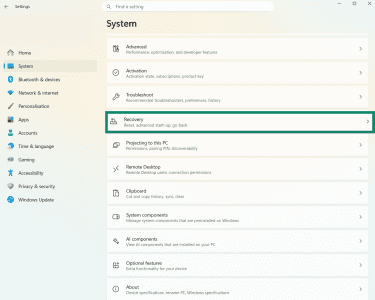
- Open Settings by pressing the Windows and I keys together or via the Start menu. Then click System or Update & Security for Windows 10.
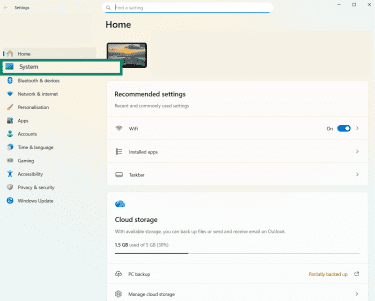
- Select Recovery.
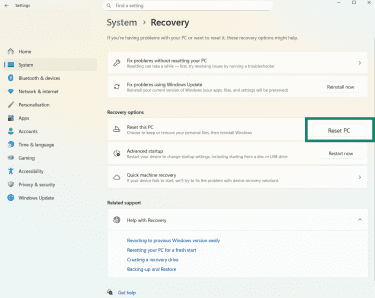
- Click Reset PC. (On Windows 10, click Get Started, next to Reset this PC.)
- Choose either Keep my files or Remove everything. Then select cloud download or local reinstall.
- Follow the on-screen prompts and wait for the reset to finish.
Reset using Windows Recovery Environment (WinRE)
- Go to Settings > System (for Windows 11) or Update & Security (for Windows 10) > Recovery. Under Advanced Startup, click Restart. On some Windows devices, pressing F9, F11, or F12 while the device powers up lets you access the Advanced Startup screen.
- From the login screen or Start menu, click the Power button and select Restart while holding the Shift key.
- Click on Troubleshoot, then Reset this PC.
- Choose either Keep my files or Remove everything, then wait for the process to finish.
What to do if the reset fails
If the factory reset fails, you can try:
- Restart your device to see if the error resolves on its own.
- Run the Startup Repair tool from the Advanced Startup menu.
- Open the Command Prompt and run the System File Checker (SFC) command with sfc /scannow to replace or repair any corrupted files.
- Try System Restore if you have a restore point available.
- If all else fails, reinstall Windows from a USB drive or disc.
After the reset: How to keep your PC fast
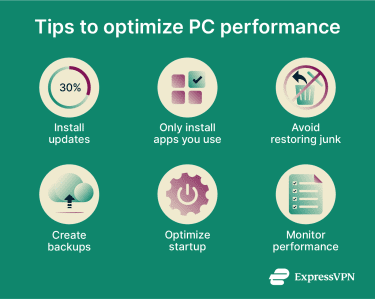 Here are ways you can keep your computer running smoothly and ensure the performance issues you were experiencing don’t return:
- Install Windows updates and drivers right away, then reinstall only essential apps to prevent unnecessary resource use.
- Restore files selectively (avoid restoring duplicates or junk) and store large items on external drives or in the cloud.
- Review and disable unwanted startup apps in Settings to improve boot-up speed.
- Monitor performance with Task Manager (Ctrl+Shift+Esc) to spot resource-heavy processes.
Protecting your PC after a factory reset
There are also several steps you can take to safeguard your PC against viruses, malware, and other threats following a factory reset.
Built-in Windows Security vs third-party antivirus
If you have a third-party antivirus installed, it’ll be wiped in the reset. That said, your device will still be protected by default with Windows Security (also known as Microsoft Defender Antivirus).
After the reset, you can choose to stick with the built-in protection or install another one. While Windows’ default security is free and updates automatically, third-party options often offer advanced features such as firewalls, dark web monitoring, and virtual private networks (VPNs).
Learn more: Do I need an antivirus on my computer?
Turn on key security settings
Open the Windows Security app or your third-party antivirus program and ensure threat detection and network protection features are enabled at all times. Also, verify that your firewall is active, and be cautious about apps that bypass it.
Restore point setup
If you encounter issues where a full reset isn’t needed, you can restore your PC from a specific point as long as you have one set up. Here’s how to set up a restore point:
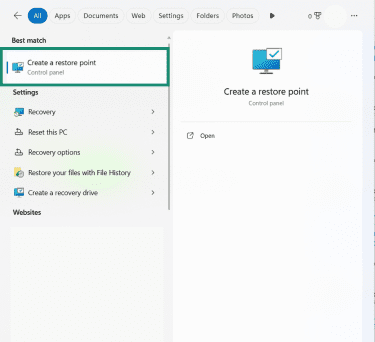
- Type “Restore” into the search bar and select Create a restore point.
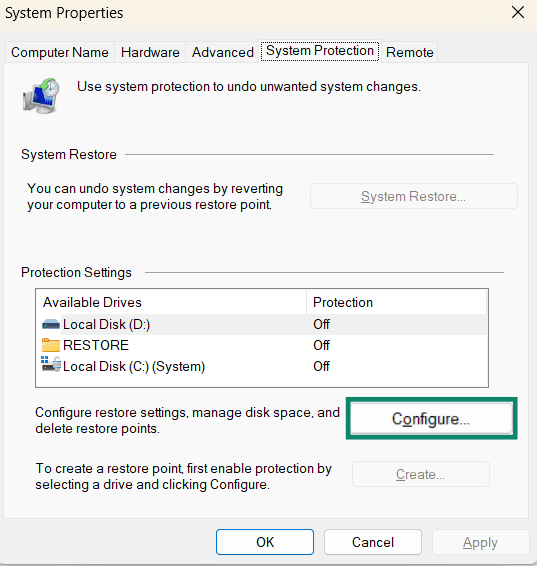
- Select the drive you want to create a restore point for and click Configure.
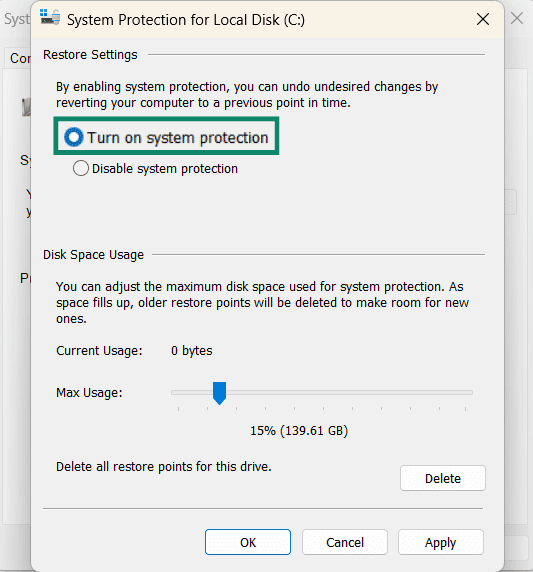
- Click Turn on system protection, if it isn’t already enabled. Then Apply and OK.
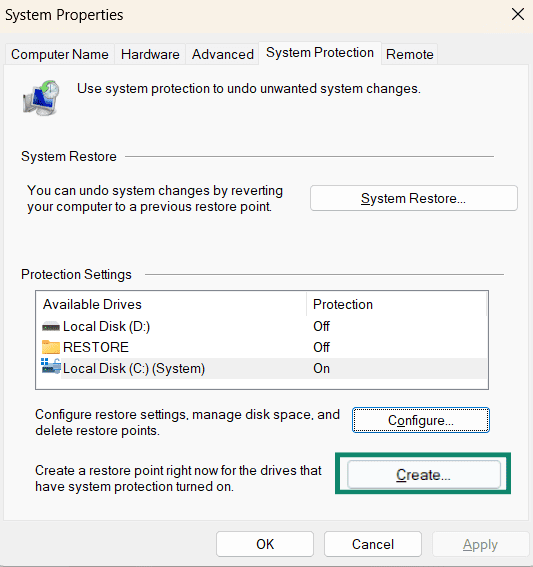
- Back on the previous menu, click Create. Follow the on-screen prompts to create a restore point that you can revert to later if you encounter any issues.
FAQs: Common questions about factory resetting a PC
Does a factory reset erase everything?
Will a factory reset remove viruses and malware?
How long does a factory reset take on Windows 10 or 11?
What keys trigger Windows Recovery on startup?
What’s the best alternative if I don’t want to reset?
Why is my PC still slow after a reset?
Take the first step to protect yourself online. Try ExpressVPN risk-free.
Get ExpressVPN











 Support Center
  FAQ
FAQ  VPN Setup Tutorials